Hanwool Codes RSS Tag Admin Write Guestbook
Categories (45)
2023-01-18 06:06:40

Say "Hello, World!" With C++ | HackerRank


Say "Hello, World!" With C++ | HackerRank

Practice printing to stdout.

www.hackerrank.com


Goal


Solution


This is simple challenge to print "Hello, World!" to stdout. We can use easily an object of class iostream. "std::cout."


// Say "Hello, World!" With C++

#include <iostream>
#include <cstdio>
using namespace std;

int main() {

    cout << "Hello, World!" << endl;
    return 0;
}


2023-01-10 07:40:22

Today, I will show how to convert m4a file into mp3 file in python.

My test environment is OS : Windows 10 and Python version : 3.7.6


Convert m4a file into mp3 file in Python


Firstly, you need to install python library "pydub" 


GitHub - jiaaro/pydub: Manipulate audio with a simple and easy high level interface

Manipulate audio with a simple and easy high level interface - GitHub - jiaaro/pydub: Manipulate audio with a simple and easy high level interface

github.com


But to use pydub library, you need to install ffmpeg or libav.


FFmpeg

Converting video and audio has never been so easy. $ ffmpeg -i input.mp4 output.avi     News July 22nd, 2022, FFmpeg 5.1 "Riemann" FFmpeg 5.1 "Riemann", a new major release, is now available! Some of the highlights: add ipfs/ipns protocol support dialogu

www.ffmpeg.org


GitHub - libav/libav: Libav github mirror, clone of git://git.libav.org/libav

Libav github mirror, clone of git://git.libav.org/libav - GitHub - libav/libav: Libav github mirror, clone of git://git.libav.org/libav

github.com


You can install ffmpeg-downloader package with below command.

pip install ffmpeg-downloader
ffdl install --add-path

The --add-path option adds the installed FFmpeg folder to the user's system path. In Windows, you need to add your PATH to use ffmpeg library. After add PATH, please reopen python interpretor or other script editor to run ffmpeg properly.


If you have other OS, you can check ffmpeg homepage or pydub github page. They explain details how to install ffmpeg in your OS.


I provide you sample m4a file to test your script. You can see more free m4a files here.

sample3.m4a
1.66MB


The sample source code is below.

from pydub import AudioSegment

song = AudioSegment.from_file("sample3.m4a")
song.export("sample3.mp3", format="mp3")


If you look at pydub github page, you can convert m4a file into any audio format file.


If you have any question, please write a comment!

'software Engineering > python' 카테고리의 다른 글

How to convert HEIC file into PNG in Python  (0) 2023.01.09
2023-01-09 03:40:30

Today, I will show how to convert HEIC file into PNG in python.

HEIC file is High Efficiency Image File Format. It is for storing individual images and image sequences. 

But HEIC format file does not accept my image editors or blog. So today I want to show how to convert HEIC file into PNG in Python.


Convert HEIC into PNG in Python


Firstly, you need to install python library "pillow_heif".

Additionall, I also use Pillow library to save heic format data into png format.

Also, I provide you sample heic file to test your script. You can see more free heic files here.

sample1.heic
0.28MB

The sample source code is below.

from PIL import Image
import pillow_heif

image_file  = "sample1.heic"

im = pillow_heif.read_heif(image_file)
image = Image.frombytes(
    mode = im.mode,
    size = im.size,
    data = im.data
)

image.save("convert_png.png", format("png"))


As you can see save format, you can also save HEIC file into JPEG, TIFF and others. It is always up to you and your project.


Reference

● bigcat88 (no date) Bigcat88/PILLOW_HEIF: Python library to work with HEIF files and an add-on for pillow., GitHub. Available at: https://github.com/bigcat88/pillow_heif (Accessed: January 8, 2023). 

● Sample heic files download (no date) Sample HEIC Files Download -  Get Examples Instantly. Available at: https://filesamples.com/formats/heic (Accessed: January 8, 2023). 


If you have any question, please write a comment!

'software Engineering > python' 카테고리의 다른 글

How to convert m4a file into mp3 file in Python  (0) 2023.01.10
2023-01-06 07:43:34

I would like to share how to connect MySQL by using Python script.

My Python version is 3.7.6.


1. Install mysql-connector-python


First, you need to install mysql-connector-python module. Install this module by using pip.

pip install mysql-connector-python


2. Setup Mysql 


To connect mysql, we need to set up couple things in advance.

I try to connect local mysql server(localhost). But you can change host ip address if you want.

I created user "testuser" and password "0000" with "mysql_native_password" authentical plugin.

You can easily create user below query. 

CREATE USER 'testuser'@'localhost' IDENTIFIED WITH mysql_native_password BY '0000';


So, the summary of my setup is here.

● host : localhost 
● user : testuser
● password : 0000
● authentication plugin : mysql_native_password


3. Connect Python to Mysql

So here is source code. I write one query to check connection. 

If you want to see more details about mysql.connector module. Please check this link.

import mysql.connector
from mysql.connector import (connection)

try :

    mydb = mysql.connector.connect(
      host="localhost",
      user="testuser",
      password="0000",
      auth_plugin='mysql_native_password'
    )

    # simple query to check mysql is connected.
    # list tables from world database
    sql_select_Query = "show tables from world"

    cursor = mydb.cursor()
    cursor.execute(sql_select_Query)
    records = cursor.fetchall()
    
    print('tables : ', records)

    # close mysql connection
    if mydb.is_connected():
        cursor.close()
        mydb.close()
        print("MySQL connection is closed")

except mysql.connector.Error as e:
    print("Error reading data from MySQL table", e)


If connection is success, you can see this result.


If connection is not worked, you can see error message. You can see one of error message below.

ERROR 1045 is one of error value When you enter an incorrect password or password for your database


If you have any question, please write a comment

2023-01-06 06:43:57

Today, I want to show how to install visual studio code for C++ IDE.

My OS is Windows 10.

The reason why I choose Visual Studio Code is because it is open-source and fast interface.


We need to install software and build environment path but it is not so hard!

Then, let's start!


1. Install Visual Studio Code


Install Visual Studio Code this link(Download Visual Studio Code - Mac, Linux, Windows)


Download Visual Studio Code - Mac, Linux, Windows

Visual Studio Code is free and available on your favorite platform - Linux, macOS, and Windows. Download Visual Studio Code to experience a redefined code editor, optimized for building and debugging modern web and cloud applications.

code.visualstudio.com


If you install Visual Studio Code, now we need to install extension for C++.

I installed "C/C++" and "C/C++ Extension  Pack" Extensions. The Extension window is located here.


If you still don't know how to install exntesion, please check this link.(Managing Extensions in Visual Studio Code)


Managing Extensions in Visual Studio Code

Discover, add, update, disable and uninstall Visual Studio Code extensions (plug-ins) through the Extension Marketplace.

code.visualstudio.com

You might need to install SDK too. Here is link for SDK for Visual Studio Code (Download .NET SDK for Visual Studio Code (microsoft.com))


Download .NET SDK for Visual Studio Code

Download and install the .NET SDK for building .NET apps with Visual Studio Code on Linux, macOS, or Windows.

dotnet.microsoft.com


2. Install a compiler


We also need to install a compiler. C++ is a compiled language so we must complie before it can be run in your machine. Unfortunately, VS code is an editor and does not include a C++ compiler or debugger. Therefore, you need to install a compiler additionally.


But, maybe you already have a compiler. Check if you have a compiler.

Please open Command Prompt in your machine and write this command.

This command is to check for the GCC compiler:

g++ --version

If you can see g++ version like below, you have already a compiler.


If you don't have any compiler, I recommend to you to install MinGW-x64 via MSYS2. The MSYS2 link is here(MSYS2)


MSYS2

Software Distribution and Building Platform for Windows

www.msys2.org

After you install MSYS2, please Run MSYS2 terminal. You need to install the full Mingw-w64 toolchain. So please write this command in MSYS2 terminal.

pacman -S --needed base-devel mingw-w64-x86_64-toolchain


If you install all toolchain, now you need to add the MinGW compiler to your environment PATH.

Please follow these steps.


1. open Windows settings.

2. search for Edit environment variables for your account. 

3. Choose the Path variable in your User variables and then select Edit.

4. add your mingw-w64 installed path into Path. If you don't change any installation path, it should be C:\msys64\mingw64\bin.

5. Select OK.


Now, we can check your MinGW compiler.

Please open Command Prompt in your machine and write this command. 

gcc --version
g++ --version
gdb --version

If you can see all version, you succeed to install MinGW.

But if you cannot see all, please check your PATH correct and C:\msys64\mingw64\bin folder has files. If you don't have files in C:\msys64\mingw64\bin folder, you need to install full Mingw-w64 toolchain again.


3. Run Hello World

So now, we need to check the compiler is working fine.

Let's open VS code and create a folder HelloWord and create helloworld.cpp file.

I just created one more parent folder "C++". But it doesn't matter!

Now, please paste this script into your source code(helloworld.cpp) and save source code:

#include <iostream>

int main()
{
    std::cout << "Hello World" << std::endl;
}

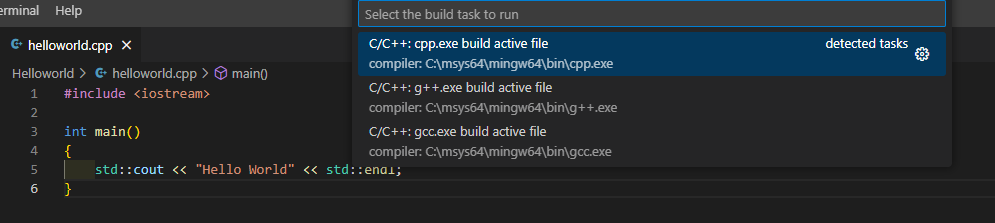
Now, we need to build source code first as I explained above. Select the Terminal → Run Build Task from the main menu.

There are several build options. But we choose C/C++: g++.exe build active file option.

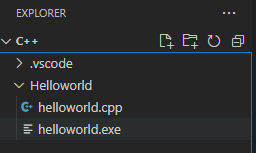
If your build finished successfully, you can see an executable file called helloworld.exe in File Explorer.


To run helloworld.exe, please open new terminal in VS code.

run your program by typing ".\helloworld.exe" in your terminal. If everything is fine, you should see the output "Hello World".


So today, we learn how to install visual studio code for C++.


If you have any question, please write a comment.


Hanwool Codes. Designed by 코딩재개발.